
QuickBooks is good at keeping the books and poor at letting anything else read them. The moment you want a dashboard that joins sales to your web shop, a report QuickBooks does not offer, or one database that several internal tools can query, the data has to come out of QuickBooks and into something that speaks SQL. For a lot of businesses that something is MySQL.
This guide covers the three realistic ways to do it, what the resulting tables look like, the mapping decisions that cause trouble later, and how to keep the copy current without anyone exporting spreadsheets by hand.
Three ways to get QuickBooks data into MySQL
| Approach | Good for | Weak point |
|---|---|---|
| Export to Excel or CSV, then import | A one-off migration or an annual snapshot | Nobody keeps doing it weekly; the copy goes stale within days |
| Write your own sync against the QuickBooks SDK or API | Unusual requirements, two-way flows, very large files | Weeks of development, plus ongoing maintenance as QuickBooks changes |
| A scheduled sync utility such as QBSync | Keeping a reporting copy current with no code | One direction only: QuickBooks → database |
The manual route is fine for a migration. If the goal is reporting or integration, you need the copy to refresh itself, which leaves the other two. Building your own makes sense when you need data flowing back into QuickBooks or logic no utility offers; for a read-only copy, a utility is cheaper by an order of magnitude.
What ends up in the database
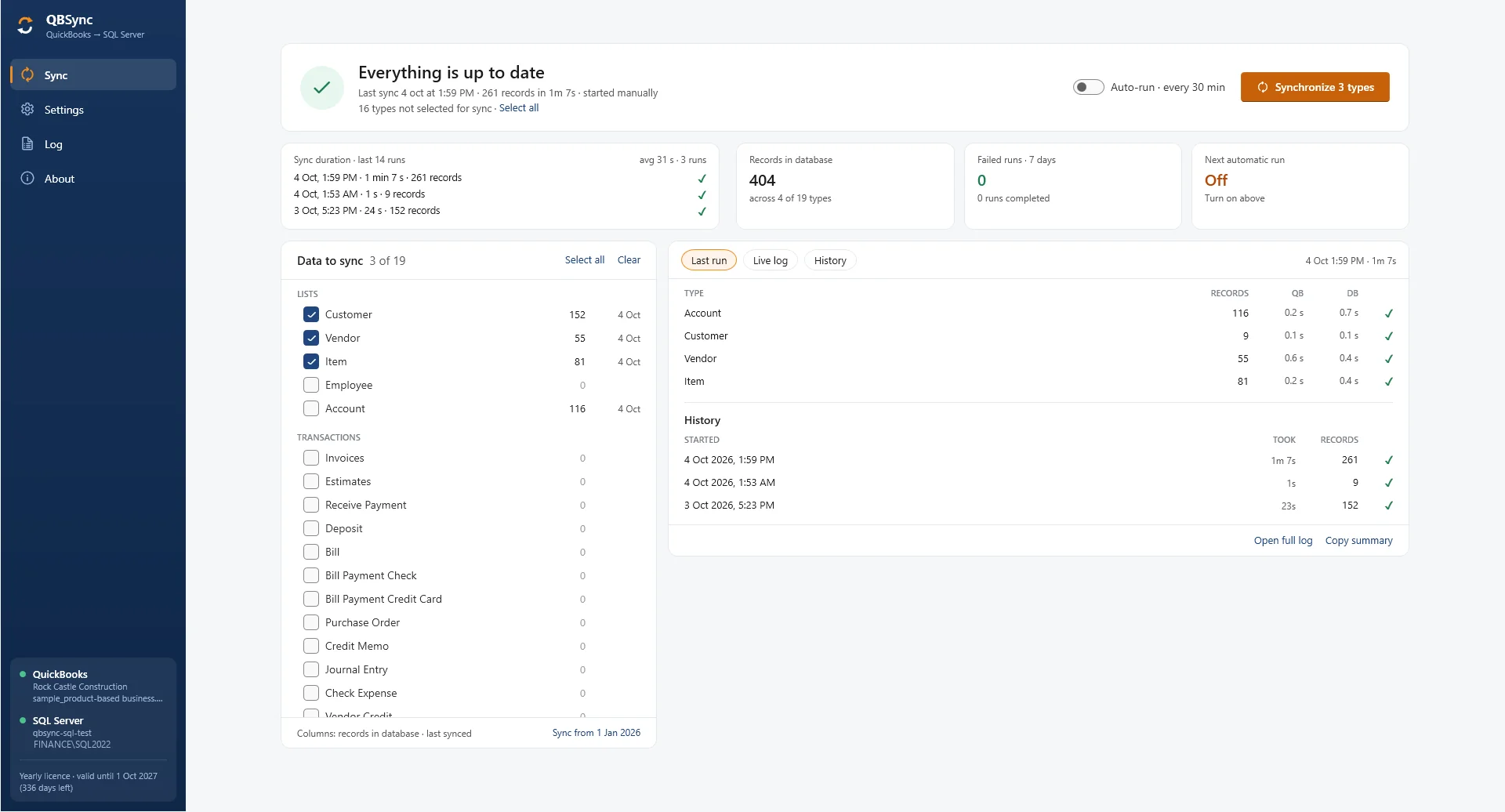
QuickBooks data divides into lists (the master records) and transactions. A sensible MySQL schema keeps that split, with one table per QuickBooks object and a child table for anything that has line items. QBSync offers 19 types and lets you tick the ones you want, so a reporting database can start with the five lists and add transactions later.
| QuickBooks object | Typical table | What you report on |
|---|---|---|
| Customers and jobs | customers | Sales by customer, open balances, customer lists for marketing |
| Vendors | vendors | Spend by vendor, payables |
| Items | items | Sales and margin by product or service |
| Employees | employees | Time and payroll-related reporting |
| Chart of accounts | accounts | Anything grouped by income or expense account |
| Invoices, estimates, credit memos | invoices + invoice_lines | Revenue, aging, product mix, quote-to-invoice conversion |
| Received payments and deposits | payments, deposits | Cash collected, days-to-pay, bank reconciliation |
| Bills, vendor credits, bill payments (cheque or card) | bills + bill_lines, bill_payments | Expenses, payables aging |
| Purchase orders | purchase_orders + lines | Committed spend, open POs |
| Cheques and expenses | checks + lines | Spend outside the bills workflow |
| Journal entries | journal_entries + journal_lines | Full general ledger reporting |
Line items are the part people get wrong. An invoice with four lines is one row in invoices and four rows in invoice_lines, each with the item, quantity, rate and amount, and a foreign key back to the invoice. Flattening lines into the header table, or storing them as a text blob, makes every product-level report impossible later.
Field-mapping decisions that matter
- Use QuickBooks' own IDs as keys. QuickBooks Desktop gives every list record a
ListIDand every transaction aTxnID; QuickBooks Online uses a numericId. Store them as the primary key and never generate your own, or re-syncs will create duplicates. - Keep the modified timestamp.
TimeModified(Desktop) orMetaData.LastUpdatedTime(Online) is what lets a sync pick up only what changed since the last run. - Money is `DECIMAL`, not `FLOAT`.
DECIMAL(15,2)for amounts andDECIMAL(15,4)for rates and quantities. Floating point will put rounding errors in your totals. - Store references, then names. A line carries an item reference (the ID) and the item name as it was at the time. Keep both: the ID for joins, the name so historical reports do not change when someone renames an item.
- Handle deletions. QuickBooks keeps a record of deleted transactions. A sync that never asks about deletions will keep reporting invoices that no longer exist.
- Dates are dates. Transaction date as
DATE, modified time asDATETIME. Do not store either as text.
Setting the schedule
The first run exports everything, which on a company file with years of history can take a while. Every run after that should be incremental, fetching only records modified since the previous run, which is what makes a frequent schedule practical.
- Operational use (a web app showing live-ish balances, a warehouse pulling today's orders): every 15–30 minutes.
- Reporting and dashboards: hourly during the working day, or nightly if the numbers only get looked at in the morning.
- Month-end packs: nightly is enough, but run a manual sync after the last adjusting entries are posted.
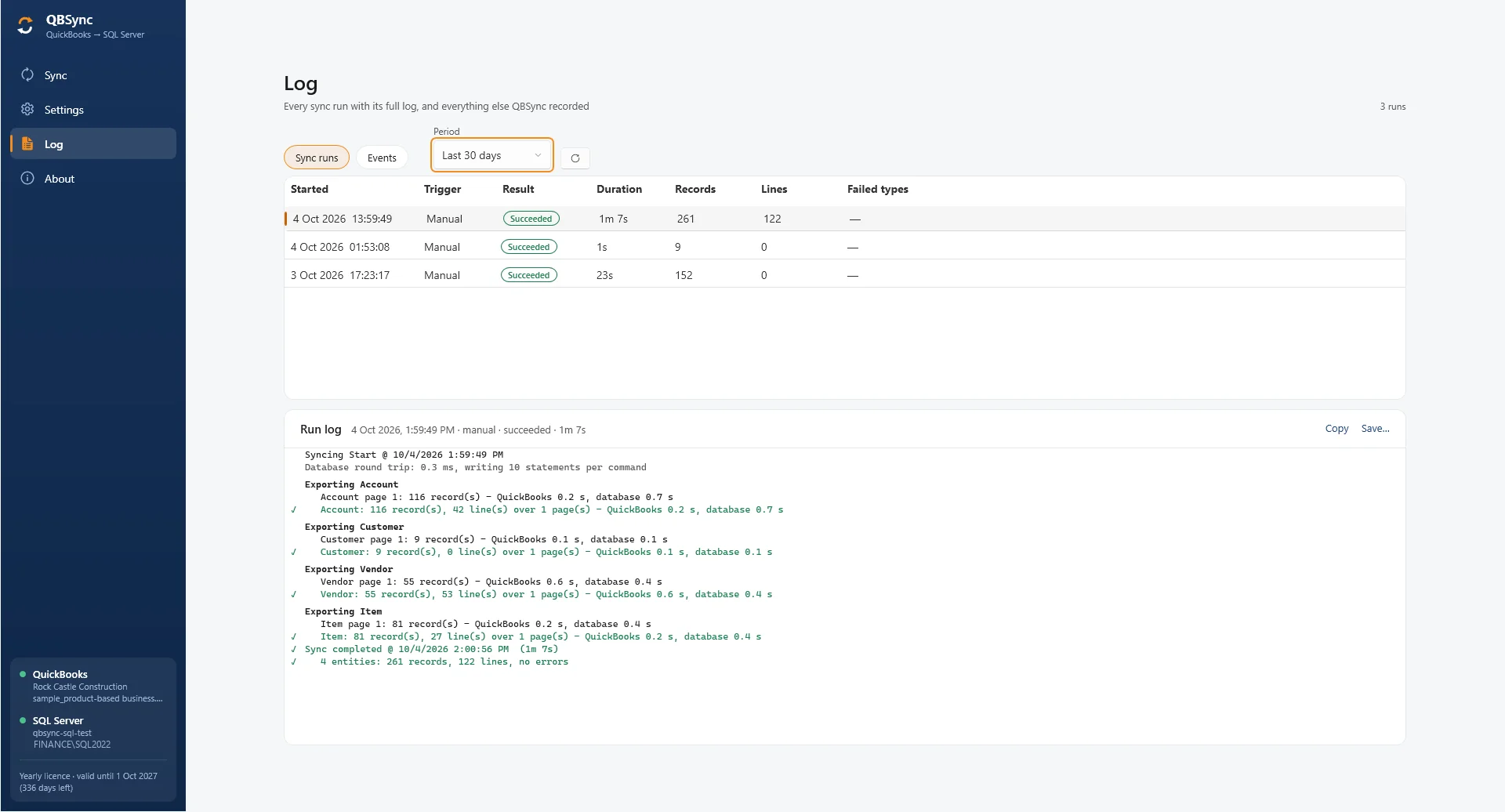
With QuickBooks Desktop the sync runs on the Windows machine where QuickBooks is open on the company file, which in most offices is a PC or server that stays open all day anyway. QBSync sits in the system tray next to QuickBooks: auto-run every so many minutes or daily at a set time, a sync transactions from date so the first run only brings in the history you want, and a run missed while the PC slept happens when it wakes. Every run is logged with the records, lines and timings per type, and the log can be emailed to you on failure, on success, or both.
Querying it: two reports QuickBooks does not give you
Once the tables exist, the reports are plain SQL. Sales by customer by month, which QuickBooks only shows one period at a time:
SELECT c.name AS customer,
       DATE_FORMAT(i.txn_date, '%Y-%m') AS month,
       SUM(i.total_amount) AS sales
FROM invoices i
JOIN customers c ON c.list_id = i.customer_list_id
WHERE i.txn_date >= '2026-01-01'
GROUP BY c.name, month
ORDER BY c.name, month;
Open invoices by age bucket, joined to the customer's email so the collections list is ready to send:
SELECT c.name, c.email, i.ref_number, i.txn_date, i.balance_remaining,
       CASE
         WHEN DATEDIFF(CURDATE(), i.due_date) <= 0  THEN 'Current'
         WHEN DATEDIFF(CURDATE(), i.due_date) <= 30 THEN '1-30'
         WHEN DATEDIFF(CURDATE(), i.due_date) <= 60 THEN '31-60'
         ELSE '60+'
       END AS bucket
FROM invoices i
JOIN customers c ON c.list_id = i.customer_list_id
WHERE i.balance_remaining > 0
ORDER BY i.due_date;Where QBSync fits
QBSync is our utility for exactly this job: it exports a QuickBooks company file into MySQL or Microsoft SQL Server, does a full export first and incremental runs after that, and runs on a schedule from the system tray with a log and an optional email report for every run. It is one-way by design. If you need selected data flowing back into QuickBooks, that is a custom integration, because the rules for what wins when the two sides disagree differ for every business.
There is a free demo download so you can run it against your own company file and your own MySQL server before deciding anything.