
Product
Check Printing for QuickBooks Online, with AI Review
PrintCHECK pulls the transactions QuickBooks Online records as checks, gives each one a number from the right check book, and prints them as a batch on your own check stock.
Voucher, standard, or a layout QuickBooks cannot produce at all — you place the fields once in the designer, and every run after that uses the same design.
It now checks every batch before it hits paper — flagging possible duplicates, unusual amounts, first-time payees and checks changed in QuickBooks — and answers plain-English questions about your check register, with every figure taken from your own data.

What's included
- QuickBooks Online
- Drag-and-Drop Designer
- Batch Printing
- Multiple Banks
- Change Detection
- Print History
- AI Pre-Print Review
- Ask Your Register
What it does
QuickBooks Online will print a check, but only in the layouts it already knows, and only one at a time from the transaction itself. PrintCHECK takes over at that point: it connects to your QuickBooks company, imports everything recorded as a check, and holds them in a register you work from.
Each check gets a number from the check book for its bank account, so numbering stays sequential across a batch rather than being typed in per transaction. Once numbered, checks are printed together and rendered as a PDF you can send to the printer.
Nothing is marked as printed until you confirm it. A batch that was rendered but never confirmed stays in the awaiting-print list and can be reprinted with the same numbers, which is what you want when the paper jams halfway through a run.
New: AI that checks before it hits paper
Two AI features, both working from your own check register. They are on by default for new companies and can be turned off in Settings → AI features.
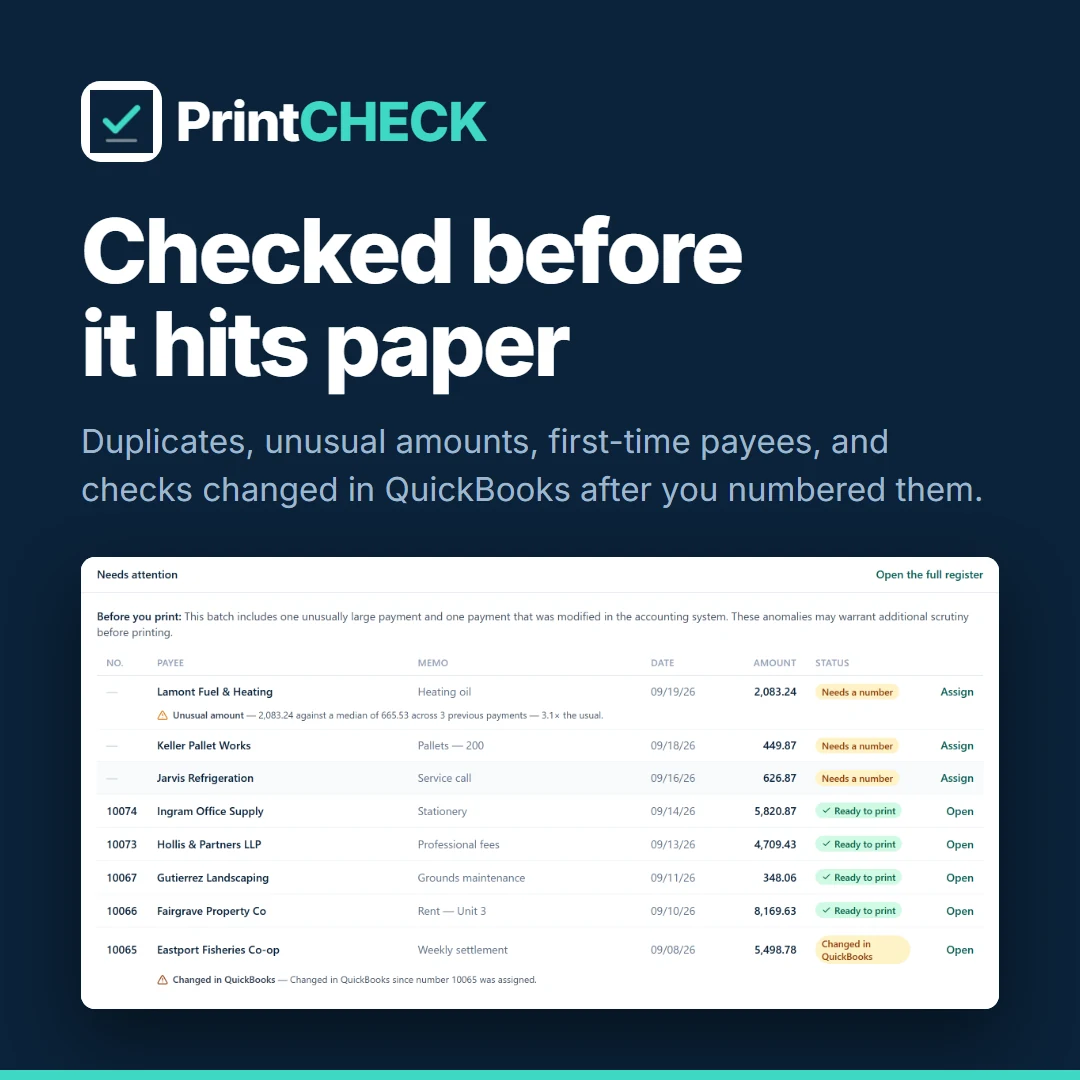
Pre-print review
Before a batch prints, PrintCHECK checks it for possible duplicates, unusual amounts, first-time payees and checks changed in QuickBooks after you numbered them — and explains each finding in plain English.
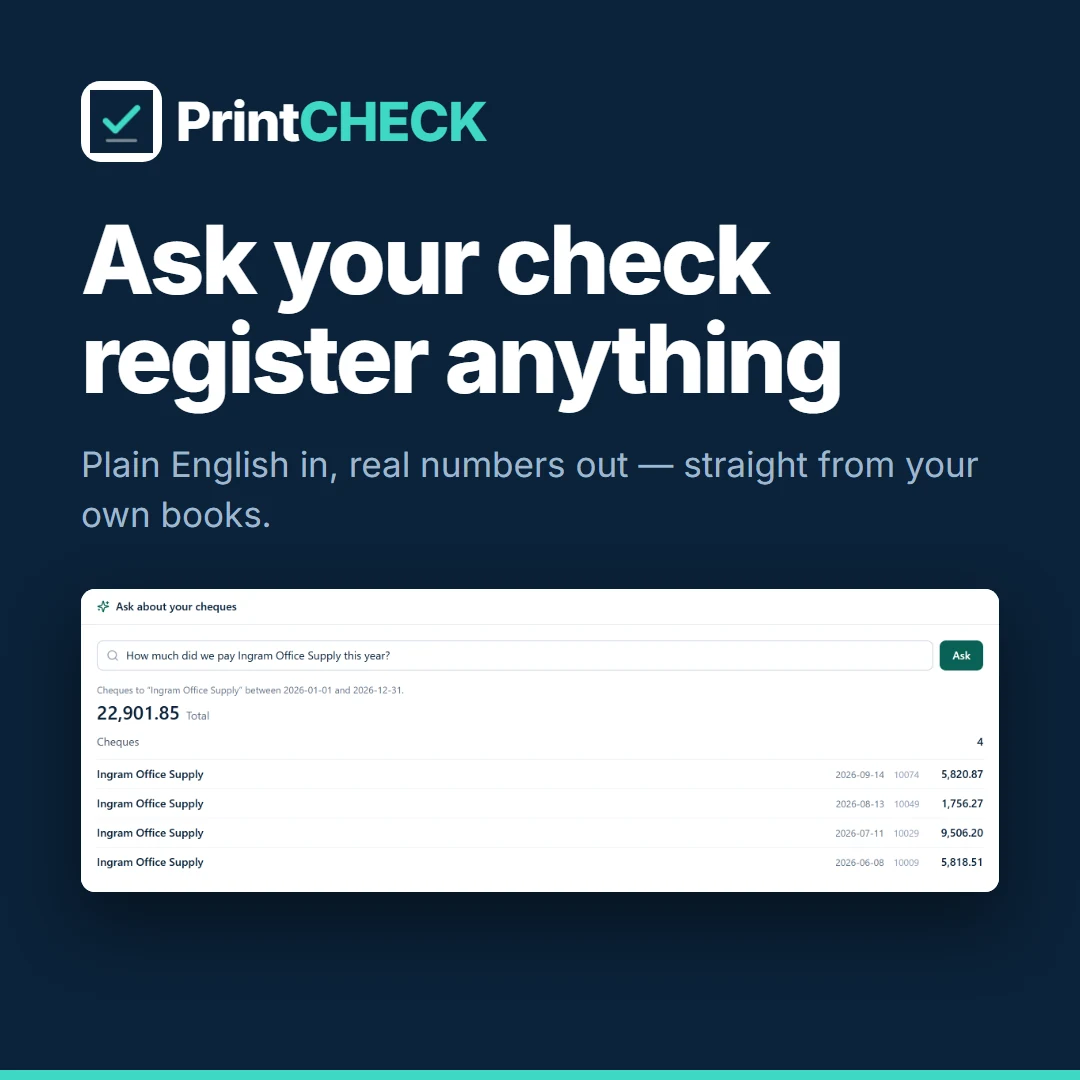
Ask your check register
Ask “How much did we pay Delta Freight this year?”, “What's waiting to be printed?” or “Who are our biggest payees?” and get the figure with the checks behind it, straight from your own books.
What the pre-print review flags
Four rules run over your own check history. The same review runs on the dashboard's Needs attention list, so you see findings before a batch is even queued.
Possible duplicate
The same payee and amount within 60 days, or two checks carrying the same QuickBooks document — even if the amount was edited in between.
Changed in QuickBooks
A check that was edited in QuickBooks after it was numbered or printed, so the change is something you find rather than discover at reconciliation.
Unusual amount
More than three times the median of that payee's previous payments, or a first-ever payment of $5,000 or more.
New payee
No previous check to this payee, worth a second look before the stock goes in the printer.
The AI in the app
Real screens: findings sit next to the checks they concern, and every answer restates exactly what it looked up.
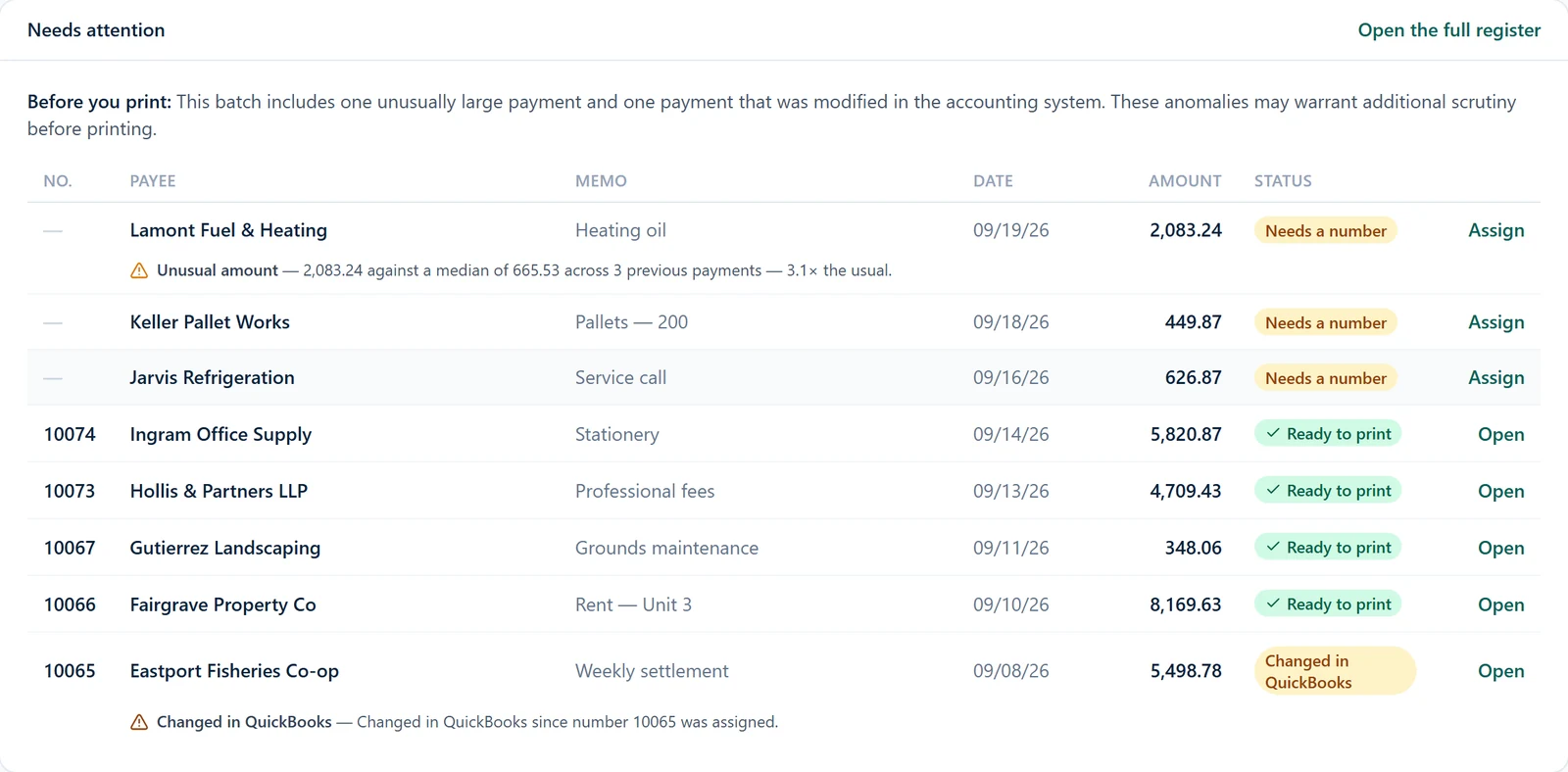
Needs attention, with the review
An unusual amount and a check changed in QuickBooks, each flagged with the evidence behind it and a one-line summary above the batch.
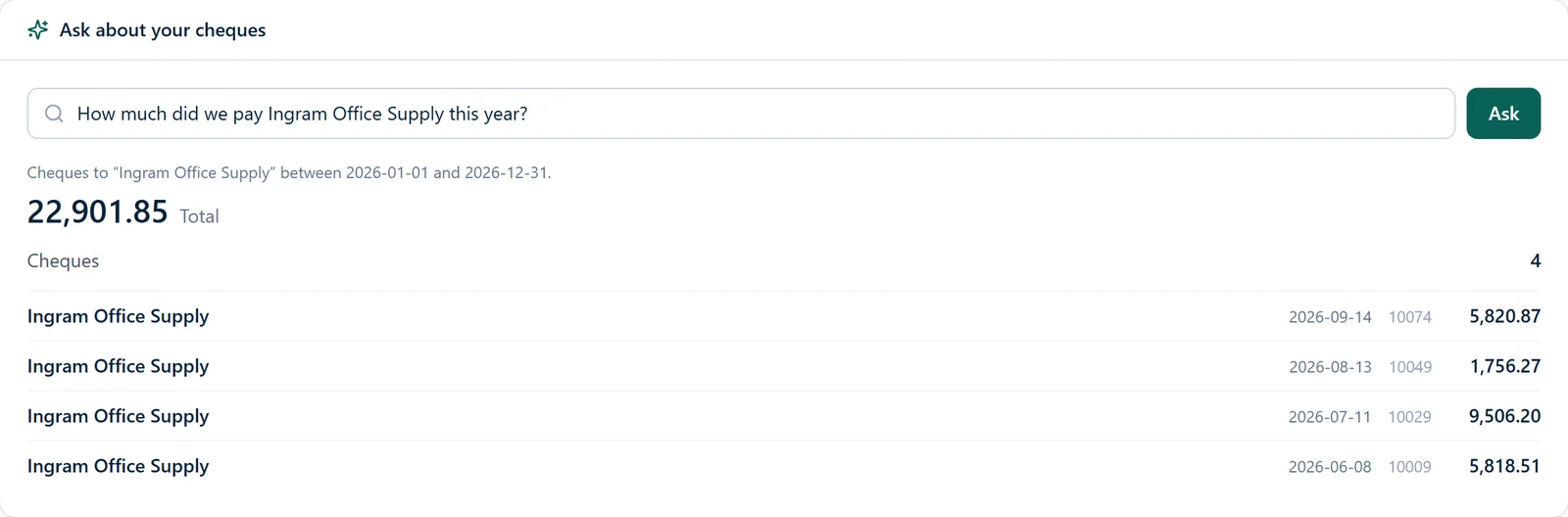
An answer from the register
The question, the query that actually ran, the total, and the checks that make it up — figures from your data, not from a model.
What the AI does, and what it does not
- Findings come from fixed rules on your own check history; the AI only explains them
- Printing is never blocked — a finding is advice next to a check
- Dismiss a finding with a reason, recorded in the activity log
- Every figure in an answer comes from your data, not from a model
- Questions outside what it can look up get a plain refusal, not a guess
- Account and routing numbers, addresses and memos are never sent to the AI provider
- If the AI provider is unavailable, findings still appear with a plain explanation
- Usage is capped per company each month, and AI can be turned off in Settings
Inside the app
Four screens cover most of the work: see what needs attention, number and print it, design the layout once, and keep a record of every run.
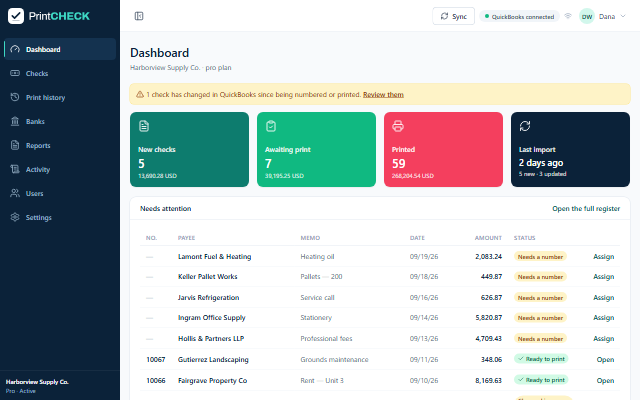
Dashboard
New checks, awaiting print, printed and last import at a glance, with anything that needs a number or has changed in QuickBooks listed underneath.
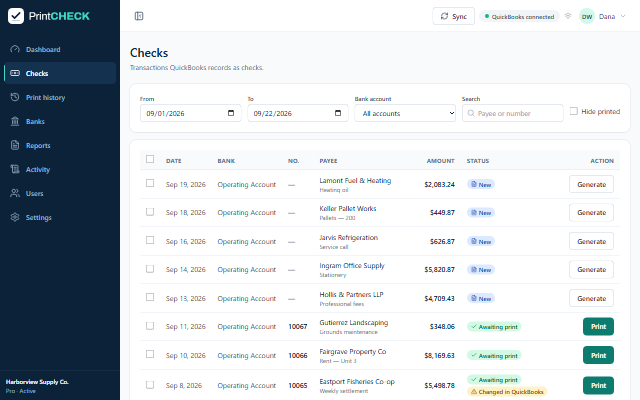
Check register
Every transaction QuickBooks records as a check, filtered by date range, bank account or payee. Generate a number, then print.
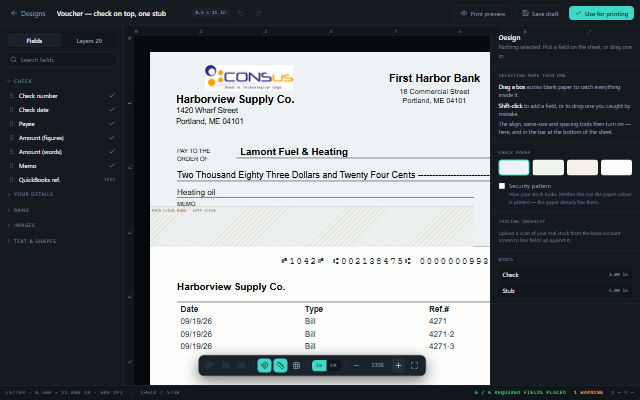
Check designer
Drag fields onto the sheet and position them against a scan of your real stock. The designer will not release a layout with a required field missing.
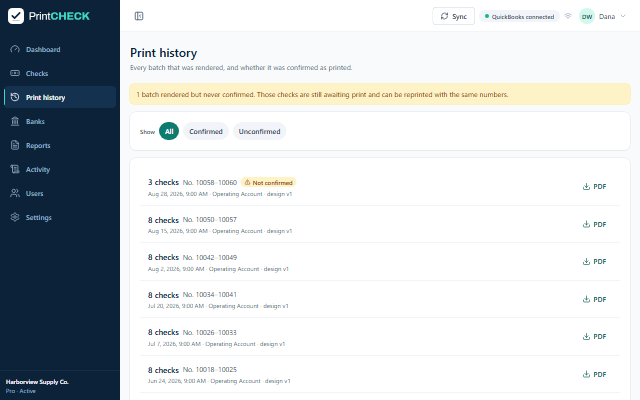
Print history
Every batch that was rendered, which numbers it covered, which design it used, and whether it was confirmed as printed. Each one re-downloadable as a PDF.
From QuickBooks to printed checks
- 01
Connect QuickBooks Online
Sign in with Intuit and authorise the company. Checks import from there, and a sync brings in anything new or changed.
- 02
Set up the bank account
Add each bank account with its check book and next number. You can upload a scan of the real stock here to design against.
- 03
Design the layout
Place the check fields where your stock expects them. Save a draft while you work; mark it for printing when it is right.
- 04
Assign numbers
Checks arriving from QuickBooks without a number are flagged. Generate numbers for the ones you are about to print.
- 05
Print the batch
Select the checks, render the batch to PDF and print it on your stock.
- 06
Confirm the run
Confirm the batch printed. Anything unconfirmed stays in the queue and can be reprinted on the same numbers.
The check designer
The reason to use PrintCHECK rather than the printing QuickBooks already has: your stock, your layout, laid out once.
Every check field
Check number, date, payee, amount in figures and in words, memo and the QuickBooks reference — plus your own details, bank details, images, text and shapes.
Design against real stock
Upload a scan of the stock you actually buy and position fields over it, rather than measuring margins and printing test pages until it lines up.
Alignment tools
Select several fields and align, match sizes or distribute the spacing between them, the same way any drawing tool works.
Voucher and standard
Check on top with a stub, or a plain check. The stub carries the bill lines behind the payment — date, type and reference for each.
Required-field checking
The designer tracks which required fields are placed and warns before you mark a layout as ready, so a run cannot go out missing the payee.
Preview before committing
Print preview renders the layout with real check data, and drafts are saved separately from the design currently used for printing.
Across the rest of the app
- Multiple bank accounts, each with its own check book and numbering
- Checks that changed in QuickBooks after numbering are flagged for review
- Filter the register by date range, bank account or payee, and hide what is printed
- Reports across what has been issued and printed
- An activity log of what was done and by whom
- Multiple users under one company account
Setup, design and first print run
Connecting QuickBooks, laying out a check against your stock, and printing the first batch.
Common questions
Something not covered here? Ask us directly.
Does this work with QuickBooks Desktop?
PrintCHECK connects to QuickBooks Online. If your company file is on QuickBooks Desktop, talk to us about QBWebSync instead, which is built for Desktop company files.
Do I need special check stock?
You print onto the blank or pre-printed stock you already buy. The paper colour and security pattern shown in the designer are there so the layout looks right on screen — they are not printed, because your paper already has them.
How do I get the fields to line up with my stock?
Upload a scan of a real check from the bank account screen and it appears underneath the design as an underlay. You position the fields against the actual stock instead of measuring offsets and printing test pages to check.
What happens if a check changes in QuickBooks after I have printed it?
It is flagged. The dashboard and the register both mark checks that changed in QuickBooks after being numbered or printed, so an amount edited after the fact is something you find rather than something you discover at reconciliation.
Does the AI decide whether a check is safe to print?
No. The review is a set of rules that flag duplicates, unusual amounts, new payees and checks changed in QuickBooks, using your own check history. The AI writes the plain-English explanation. It is not fraud detection, and it never blocks printing — you decide.
What is sent to the AI provider?
For the review: the rule that fired, the payee, amount, date and the facts the rule found. For Ask: the question you type. Bank account and routing numbers, addresses, memos and bank details are never sent, and no prompt or response text is stored. The provider's own terms govern how it handles the data it receives.
Can we turn the AI features off?
Yes, under Settings → AI features. They are on by default for companies created from late September 2026; existing companies keep the setting they had. Usage is capped at a set number of AI calls per company each month.
What if a batch fails halfway through printing?
Checks are only marked as printed when you confirm the batch. A batch that was rendered but never confirmed stays in the awaiting-print list and can be reprinted on the same numbers, so the numbering does not skip.
Can more than one person use it?
Yes. A company account carries multiple users, and the activity log records what was done and by whom. Pricing below covers a single user and an unlimited-user licence.
Pricing
Single user license $49.00 per month. Unlimited users $119.00 per month.
Licences are billed monthly. Contact us for volume or annual pricing.
Related products


Next step
Ready to move forward with PrintCHECK?
Tell us about your current process and what you need the software to do. We will come back with a practical approach, a timeline and a cost.