
In a Windows-centred business the reporting stack is usually already on Microsoft SQL Server: Power BI, SSRS, Excel connections, maybe an ERP. QuickBooks is the odd one out, and sooner or later someone asks for its data in the same place as everything else. There are three ways to get it there, and they are not interchangeable.
Option 1: an ODBC driver that reads QuickBooks live
QuickBooks Desktop has no ODBC interface of its own, but third-party drivers (QODBC is the long-standing one) present the company file as if it were a database. SQL Server can then reach it through a linked server, or SSIS can pull from it. For QuickBooks Online, vendors such as CData sell equivalent drivers over the REST API.
- Upside: no copy to maintain; every query sees the current data.
- Downside: every query goes through QuickBooks. Reports that would take a second against a table take minutes, QuickBooks has to be reachable from the SQL Server for the query to run at all, and a heavy report can slow the accounts team down while it runs.
- Fits: small files, occasional queries, and situations where a copy is not allowed.
Option 2: build the extract yourself
QuickBooks Desktop exposes its data through the QuickBooks SDK (qbXML requests, or the QBFC library from C# or VB.NET), and QuickBooks Online through a REST API with OAuth 2.0. A developer can write a job that pulls changed records and writes them to SQL Server tables, scheduled through SQL Agent or Windows Task Scheduler, or built as an SSIS package.
- Upside: complete control: which objects, which fields, what the tables look like, and two-way flows if you need them.
- Downside: it is a software project. Incremental change detection, deleted-record handling, error recovery and QuickBooks version changes all land on whoever wrote it.
- Fits: unusual requirements, data flowing back into QuickBooks, or an existing integration team that owns similar jobs already.
Option 3: a scheduled sync utility
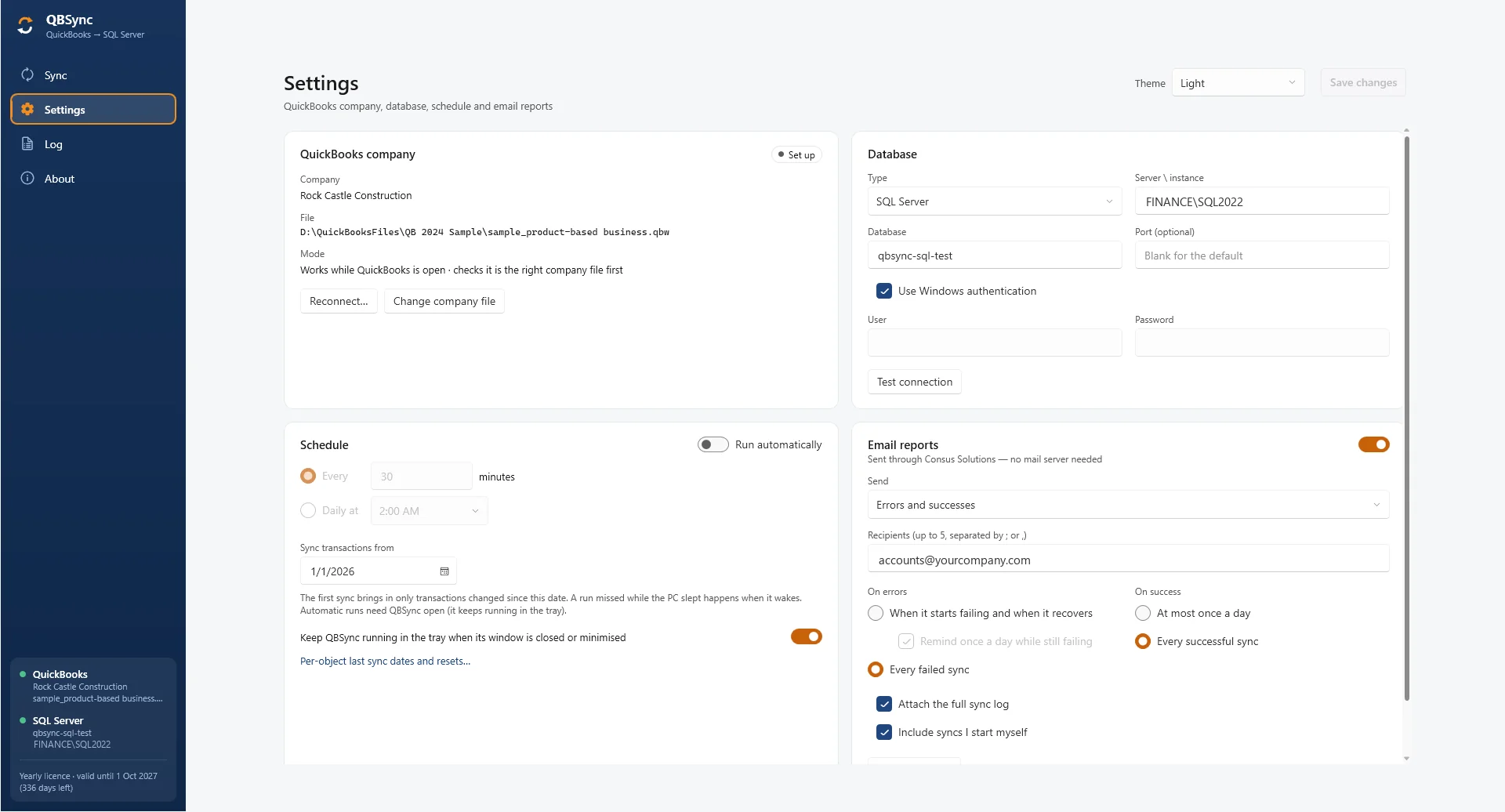
A utility such as QBSync does the extract for you: a full export on the first run, incremental runs on a schedule after that, running from the system tray next to QuickBooks with a log of every run. You point it at the company file and at the SQL Server, choose the data, set the interval, and the tables keep themselves current.
- Upside: running in an afternoon, no code, fast queries because they hit SQL Server, not QuickBooks.
- Downside: one direction only. It is a reporting and integration copy, not a way to post into QuickBooks.
- Fits: reporting, Power BI, feeding other systems with accounting data, and multi-company consolidation.
Side by side
| ODBC driver | Custom extract | Sync utility | |
|---|---|---|---|
| Data freshness | Live | Whatever you schedule | Whatever you schedule |
| Query speed | Slow (goes through QuickBooks) | Fast (local tables) | Fast (local tables) |
| Setup time | Hours | Weeks | An afternoon |
| Ongoing maintenance | Driver licence, QuickBooks reachability | Yours | None beyond the licence |
| Writes back to QuickBooks | Some drivers, with care | If you build it | No |
| Power BI / SSRS / Excel | Works, slowly | Works | Works |
SQL Server schema notes
Whichever route you take, a few choices on the SQL Server side save pain later:
- Use
NVARCHARfor names and memos. QuickBooks allows characters outside the Latin-1 range, andVARCHARwill mangle them. - Amounts as
DECIMAL(19,4), matching the precision QuickBooks uses internally; display rounding belongs in the report. DATEfor transaction dates andDATETIME2for modified timestamps.- Index
TxnDate, the customer or vendor reference, and the account reference on transaction tables. Those are what every report filters on. - Keep header and line tables separate, keyed on the QuickBooks
TxnIDorId, and give line tables a line-sequence column so order is preserved. - One schema per company file (
acme.Invoices,beta.Invoices) or aCompanyIdcolumn on every table. Decide before the first load; retrofitting it is miserable.
A first query: receivables aging in T-SQL
SELECT c.Name,
       SUM(CASE WHEN DATEDIFF(day, i.DueDate, GETDATE()) <= 0  THEN i.BalanceRemaining ELSE 0 END) AS [Current],
       SUM(CASE WHEN DATEDIFF(day, i.DueDate, GETDATE()) BETWEEN 1  AND 30 THEN i.BalanceRemaining ELSE 0 END) AS [1-30],
       SUM(CASE WHEN DATEDIFF(day, i.DueDate, GETDATE()) BETWEEN 31 AND 60 THEN i.BalanceRemaining ELSE 0 END) AS [31-60],
       SUM(CASE WHEN DATEDIFF(day, i.DueDate, GETDATE()) > 60 THEN i.BalanceRemaining ELSE 0 END) AS [Over 60],
       SUM(i.BalanceRemaining) AS Total
FROM dbo.Invoices i
JOIN dbo.Customers c ON c.ListID = i.CustomerListID
WHERE i.BalanceRemaining > 0
GROUP BY c.Name
ORDER BY Total DESC;
Which one should you pick?
- You need numbers in Power BI or Excel that refresh on their own: sync utility.
- You need QuickBooks to receive data from SQL Server, or you have rules no tool offers: custom extract, or a utility for the outbound half and a custom integration for the inbound half.
- You run the odd ad-hoc query and cannot keep a copy: ODBC driver.
If the sync utility is the right shape, QBSync supports SQL Server and MySQL with the same setup, and there is a free demo to run against your own file before you commit.